Minecraft launcher · Windows
Legends Launcher
Modded Minecraft without the setup. Sign in with Microsoft and press Play: Legends picks the right Java for any version from 1.8 to today, adds Fabric and performance mods from 1.14 on, and takes you straight to your server.
v1.1.3 · Windows 10 and 11 · free · 12 downloads · Source on GitHub
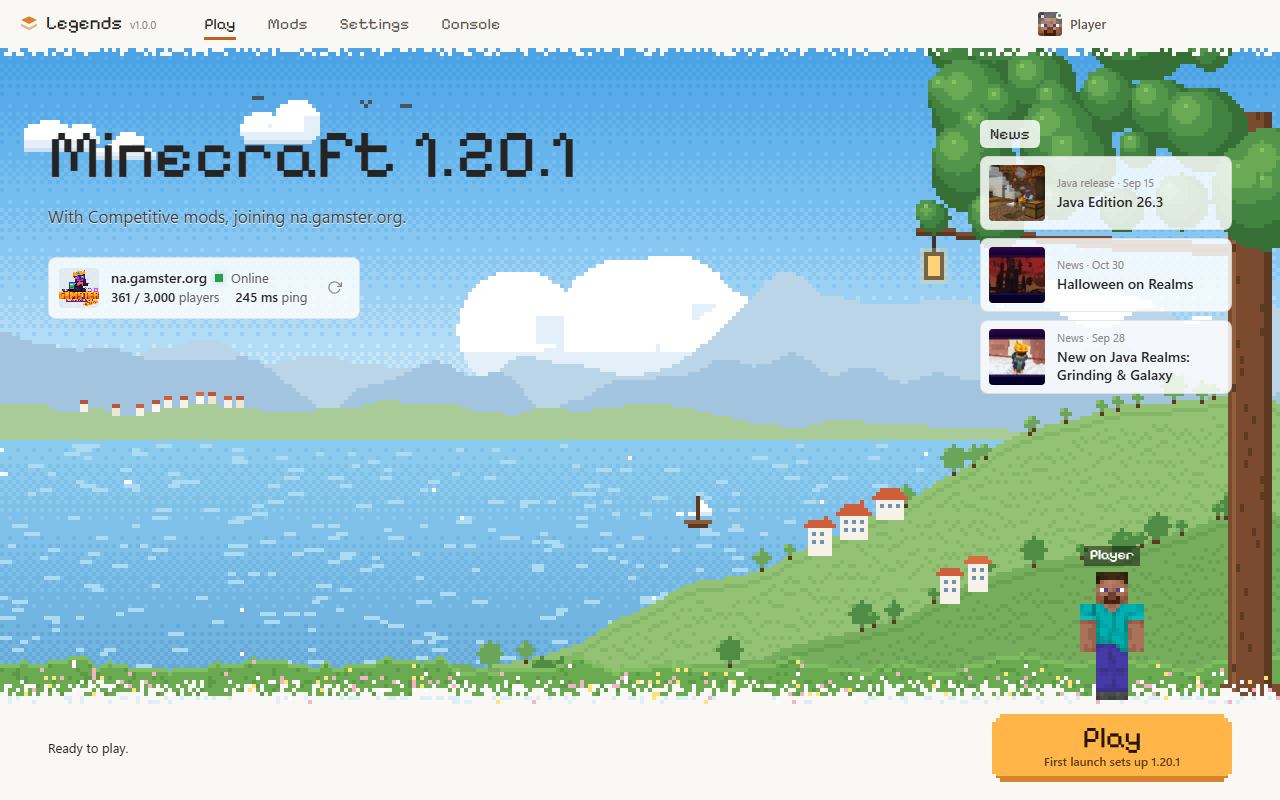
Easy Setup
One click to your server
Press Play and Legends installs the right Java, the Fabric loader, performance mods and the game files, then joins your server.
Every version since 1.8
The matching Java (8, 17, 21 or 25) is chosen automatically. From 1.14 on, Fabric and performance mods are included; older versions run vanilla.
Modrinth, built in
Search Modrinth without leaving the launcher. Adding a shader installs Iris alongside it, and mod downloads are checksum-verified.
Separate instances
Keep separate setups, each with its own version, mods and worlds. Game files are shared, so a new instance is ready in seconds.
Light on resources
Runs in about 230 MB of RAM with no graphics memory, and drops to low priority while you play so Minecraft gets the headroom.
Help when you need it
If Minecraft crashes, its crash report is one click away. The Support menu opens a bug report or copies diagnostic info to share.
Multiple accounts
Save up to 10 Microsoft accounts and switch between them in one click. Sign-in tokens are encrypted by Windows.
Always up to date
New versions download in the background and install with one click.
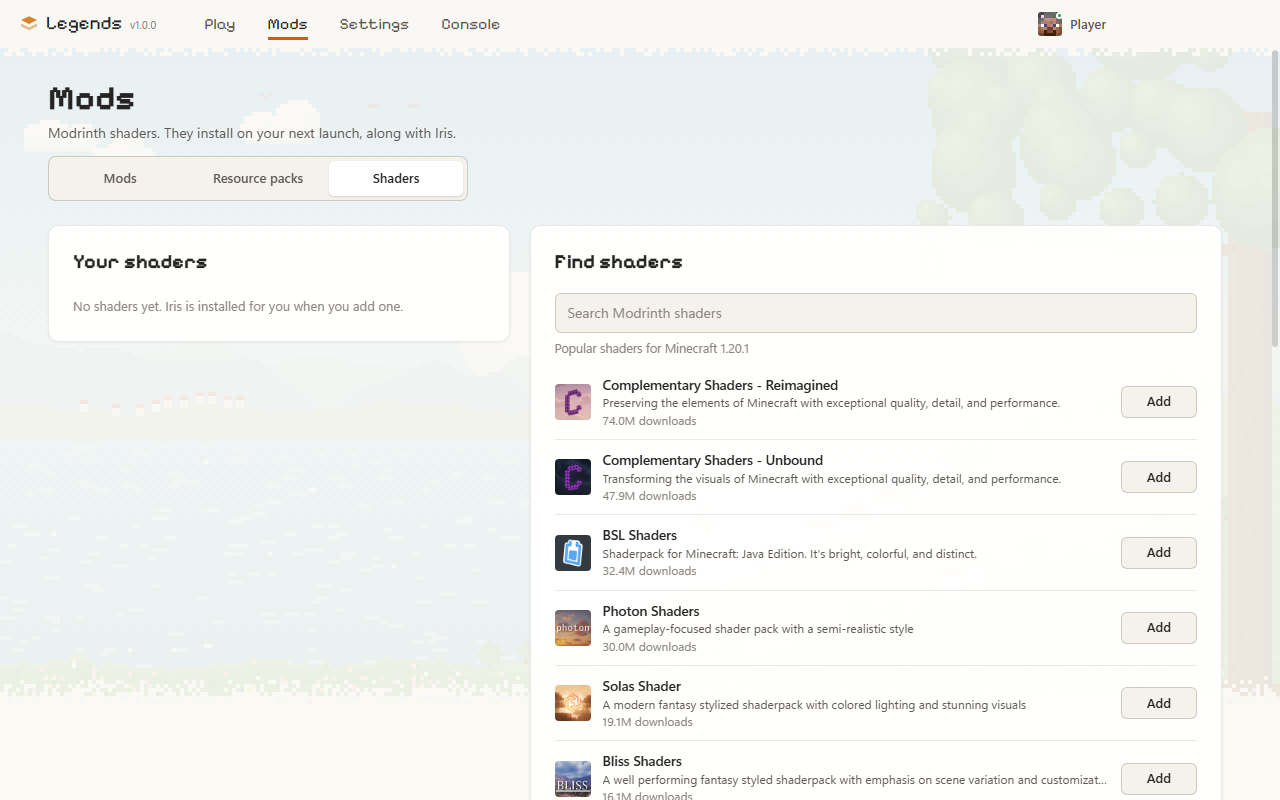
Make Every World Yours
Open the Mods tab to search Modrinth for mods, resource packs and shaders. Everything you add installs on your next launch: resource packs switch on by themselves, shaders bring Iris with them, and each instance keeps its own set.
Easy to Use
- 01
Download the installer
It installs for your Windows account only, so no administrator rights are needed.
- 02
Allow it through SmartScreen
The installer isn't code-signed yet, so Windows may show a SmartScreen prompt. Select More info, then Run anyway.
- 03
Sign in and press Play
Use the Microsoft account that owns Minecraft: Java Edition. The first launch downloads the game; after that, you go straight in.
You'll need Windows 10 or 11 (64-bit), a Microsoft account that owns Minecraft: Java Edition, and an internet connection for the first launch. The setup guide covers every step from the download to your first game.